
Billing Setup for Sub-Organizations using the API
In the Sub-Organizations guide we discuss how the feature allows you to create sandboxed PostGrid accounts under your account. As the parent organization, you can either opt for a 'Centralized' or 'Individualized' billing setup.
Under the ‘Centralized’ billing scheme, all charges for mailings sent by both the parent and its sub-organizations are billed through the parent account. As a result, only the parent organization needs to have a payment method on file for sub-organizations to access live mode and send mailings via PostGrid. By default, billing is set to the centralized setup.
In contrast, the ‘Individualized’ billing setup requires each sub-organization to add its own payment method. Sub-organizations are billed directly for the mailings they send. This setup is especially useful for parent organizations that wish to resell or white-label PostGrid. It enables them to onboard users as sub-organizations, with each sub-organization handling its own mailing-related payments.
The 'Individualized' setup is powered by Stripe Connect. When setting up 'Individualized' billing, as the parent organization, you need to create a Stripe Connect account. We support this through our API which will link your Stripe Connect account to your PostGrid account.
We also support use cases where sub-organizations pay for their own mailings without requiring you to setup Stripe Connect. However, this option disables features like revenue sharing and custom branding (e.g., your logo on invoices or payment setup pages). To enable this configuration, please contact [email protected].
How to get started?
To get started, ensure you have the sub-organization feature enabled for your account, and send a POST request to the route /organization/sub_orgs/billing/individualized_setup_links. This will return a URL that allows you to go through Stripe's onboarding process for setting up a Connected account. If at any point, you exit the process and want to resume this process later, you can generate another link to continue the onboard by sending a POST request to the same endpoint. You can also generate a link the same way if you wish to update your account after onboarding.
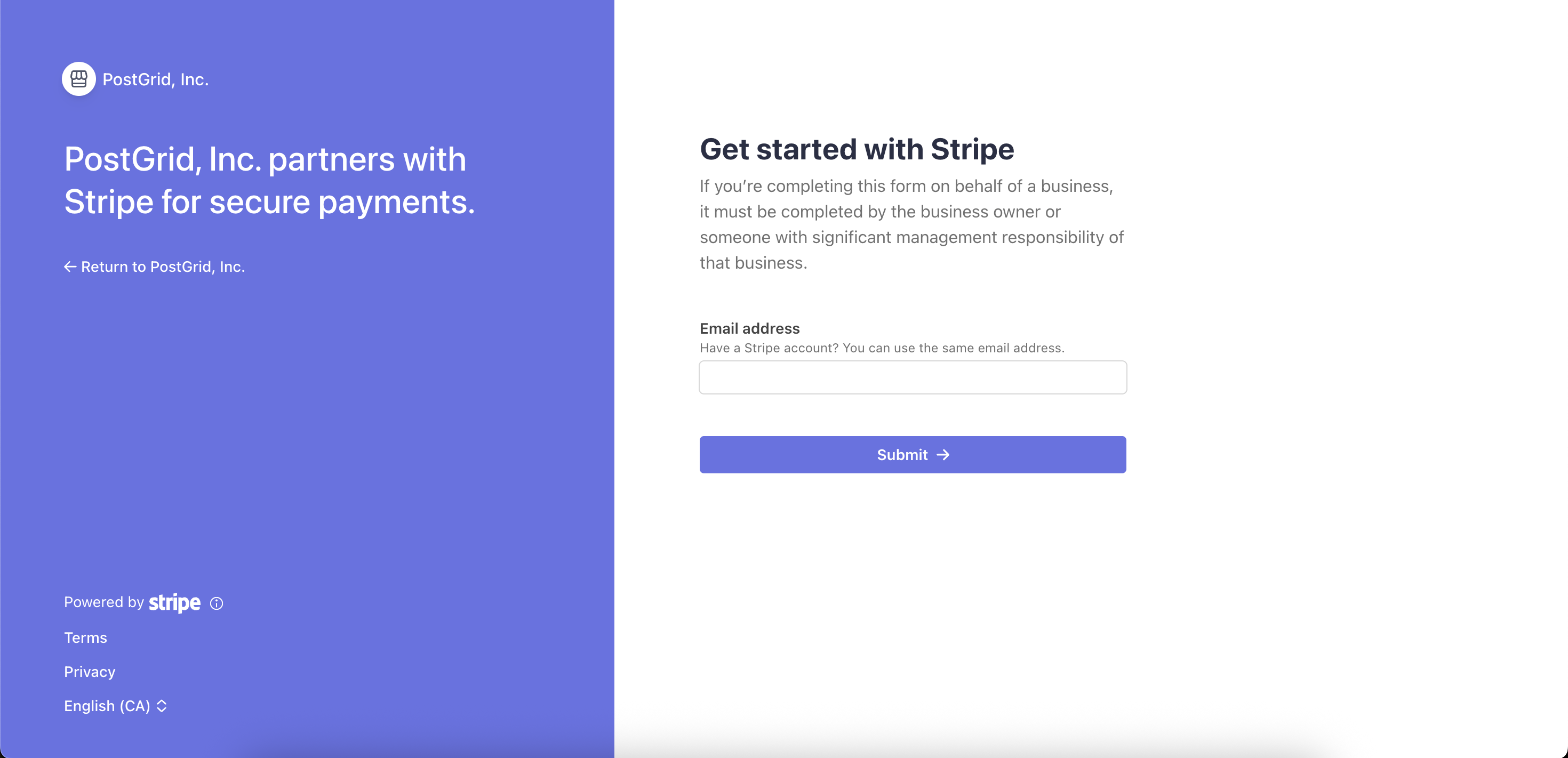
Stripe Connect Account Setup
Once your Stripe Connect account is setup, you can modify the Stripe checkout branding that is presented to your sub-organizations. You can modify your icon on Stripe checkout pages, brand colour and more detailed in this guide.
Once you have been onboarded with 'Stripe Connect', and the individualized billing process has been completed, any sub-organizations that go through our payment method setup process on our dashboard, we will do so on behalf of your Stripe Connect account. If you have any branding settings, it will be shown on the payment setup page, and it will be associated with your Stripe account.
Integrating this into your platform
We’ve covered the flow for sub-organizations adding their payment method through our dashboard. However, if you’re building your own integration using our API, we also support collecting payment details directly within your app. You can host the payment setup session in your own interface, allowing us to securely collect the payment method and associate it with the relevant PostGrid sub-organization for future mailing charges. This is made possible through Stripe’s Embedded Checkout flow.
This checkout flow requires Stripe.js, Stripe's client library. This package can be used with your frontend JavaScript application by either including it in the <script> tag of your application:
<script src="https://js.stripe.com/basil/stripe.js"></script>OR by installing it as an npm package:
npm install @stripe/stripe-jsThere is further information on these steps here on Stripe.js documentation and their GitHub repository.
Once you have Stripe.js installed in your application, the next step involves retrieving the stripeSetupSessionID, the stripeSetupSessionClientSecret and stripePublishableKey from PostGrid's POST endpoint -
/sub_organizations/:id/embedded_mailings_payment_method_setup_sessions
{
  "stripeSetupSessionID": "cs_live_xyz123",
  "stripeSetupSessionClientSecret": "cs_live_xyz123_secret_abc456",
  "stripePublishableKey": "pk_live_123",
}
The above are necessary for you to continue the session on your application and surface the Stripe payment UI to your user. Below is some sample code for retrieving them from the PostGrid endpoint.
export const loadPostGridStripe = async (subOrgID) => {
  const url = `https://api.postgrid.com/print mail/v1/sub_organizations/${subOrgID}/embedded_mailings_payment_method_setup_sessions`;

  try {
    const res = await fetch(url, {
      method: "POST",
      headers: {
        "Content-Type": "application/json",
        /**
        If you’re calling this from frontend code,
        do not expose x-api-key directly in the browser.
        Instead, make this request via your backend to keep the API key secure.
        */
        "x-api-key": "YOUR_API_KEY",
      },
    });
    if (!res.ok) {
      throw new Error(`HTTP error! Status: ${res.status}`);
    }

    const { stripeSetupSessionID, stripePublishableKey, stripeSetupSessionClientSecret } =
      await res.json();

    // Initialize the Stripe client and return it
    const pgStripe = Stripe(stripePublishableKey);

    return {
      pgStripe,
      stripeSetupSessionID,
      stripeSetupSessionClientSecret
    };
  } catch (error) {
    console.error("Error fetching PostGrid config:", error);
    throw error;
  }
};
Using Vanilla JS
If you are using React, feel free to skip to the 'Using React' section.
First, initialize the Stripe client using the stripePublishableKey. Then use the stripeSetupSessionClientSecret to create and start an embedded checkout session. Be sure to store the stripeSetupSessionID, you’ll need it later to check the session’s status.
import { loadPostGridStripe } from "./services";

const subOrgID = getSubOrgID(...);

const { stripeSetupSessionID, stripeSetupSessionClientSecret, pgStripe } =
await loadPostgridStripe(subOrgID);const checkout = await pgStripe.initEmbeddedCheckout({
/**
A callback function fetchClientSecret() => Promise<string>
that resolves with the client secret for the Checkout Session.
The client secret is retrieved from the PostGrid API
*/
fetchClientSecret: async () => stripeSetupSessionClientSecret,
onComplete: async () => {
/** Passing an onComplete callback function allows you to run custom actions after the checkout session finishes. For example, you might fetch the session status from the PostGrid endpoint to decide whether to move forward to the next step or prompt the user to finish the session. **/
}
});The checkout will then need to be mounted to the DOM.
<div id="checkout">
  <!-- Checkout will be inserted here. -->
</div>

<!-- The checkout.mount method attaches Checkout to the DOM.
checkout.mount accepts either a CSS Selector (e.g., '#checkout') or a DOM element. -->
<script>
  checkout.mount('#checkout');
</script>
It can be unmounted from the DOM using checkout.unmount(); and also destroyed using checkout.destroy();. Do note that once you destroy the check, it cannot be mounted again and will need to be initialized again as above.
To check the session status, call this endpoint in your onComplete() callback (in initEmbeddedCheckout or wherever you handle the status):
/sub_organizations/${subOrgID}/embedded_mailings_payment_method_setup_sessions/${stripeSetupSessionID}.
The response includes a session object with a status field, which can be open, complete or expired.
For card payments, (the primary option for PostGrid's embedded checkout) , Checkout renders a default success state instead of redirecting. If you want a custom success state, use the onComplete callback to destroy the Checkout instance and render your own.
Using React
If you are using React in your frontend application, Stripe.js provides the convenient <EmbeddedCheckoutProvider> component.
import React, { useState, useEffect } from "react";
import { EmbeddedCheckoutProvider } from "@stripe/react-stripe-js";
import { loadPostGridStripe } from "./services";

function App() {
  const [stripeConfig, setStripeConfig] = useState(null);

  const [isComplete, setIsComplete] = useState(false);

  const handleComplete = () => setIsComplete(true);

  useEffect(() => {
    async function fetchStripeConfig() {
      const subOrgID = getSubOrgID(...);
      // Fetches { stripeSetupSessionID, stripeSetupSessionClientSecret, pgStripe }
      const config = await loadPostGridStripe(subOrgID);
      setStripeConfig(config);
    }
    fetchStripeConfig();
  }, []);

  if (!stripeConfig) {
    return <div>Loading payment setup…</div>;
  }

  return isComplete ? (
    /** This success page can be a custom component to show to users after their checkout session **/
    <SuccessPage />
  ) : (
    <EmbeddedCheckoutProvider
      stripe={stripeConfig.pgStripe}
      options={{
        fetchClientSecret: async () => stripeConfig.stripeSetupSessionClientSecret,
        onComplete: handleComplete
      }}
    >
      <EmbeddedCheckout />
    </EmbeddedCheckoutProvider>
  );
}

export default App;
Once the session on your application is completed. PostGrid will receive updates from Stripe that will allows us to attach the entered payment details to your PostGrid sub-organization, which we can then charge later for any mailings that are sent out.
Here are some additional links for working with Stripe.js and the 'Embedded Checkout' workflow.
Handling completion of the setup
Embed a payment form on your site
Updated 8 months ago